How to set it up, step by step.
Follow the setup from the first admin click to the finished checkout. Each example explains what to enter, what to select and why it produces the result shown.
Real interface captures from Garage Door Parts UK, 30 September 2026. The installed admin uses the name Courier Surcharge. These examples use existing store rules and a demonstration basket; no order was placed.
Works with any OpenCart shipping method
Apply rules to the standard method codes supplied by your shipping modules: flat rate, free shipping, weight-based delivery, collection and third-party carrier services. The examples below use this shop’s existing DPD, Parcelforce and Royal Mail services; you can choose the services used by your own store.
Core surcharges, restrictions and delivery notices do not require Ultimate Shipping. Only the optional supplier-direct weight/rate splitting feature requires that separate extension. Check your exact checkout integration for quote annotations and notice placement.
EXAMPLE 01 · PRODUCT OPTIONS + SHIPPING METHODS
Add the extra cost only where it belongs.
A 1.5 metre crank handle needs a length surcharge on selected DPD services. Parcelforce remains available without that extra charge.
Benefit: recover a carrier-specific handling cost while letting the customer compare suitable alternatives.
Open the extension and add a cost rule
In OpenCart admin, go to Extensions → Extensions. Choose Order Totals, then edit Courier Surcharge. Open the Surcharge Rules tab and click Add Another Cost. If you are editing an existing rule, expand that rule instead.
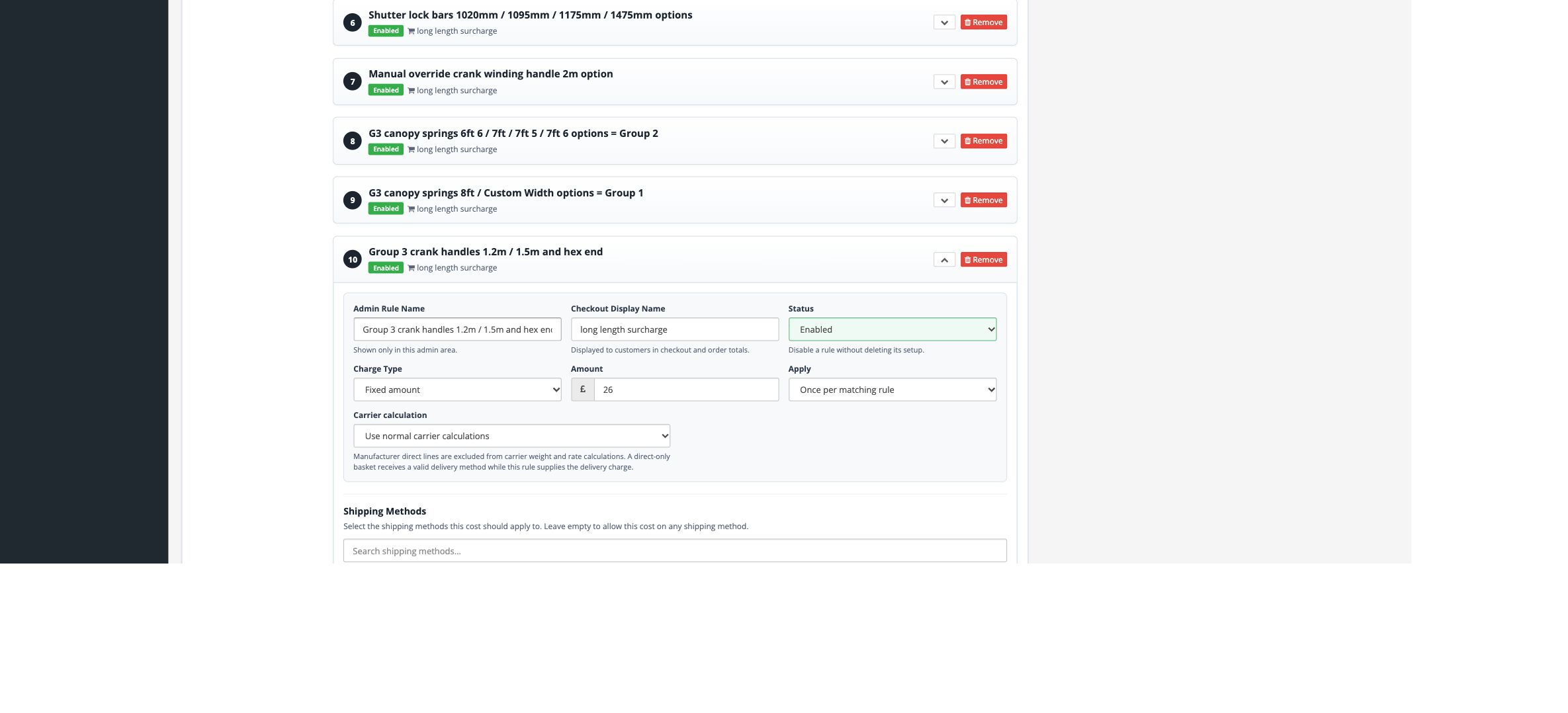
The screenshot shows an existing shop rule covering several long-handle items. The settings below explain how to recreate the same behaviour for your own selected product.
Enter the rule details
Start with the names, charge and charging basis. Then choose the product and its qualifying option values, followed by the shipping services.
| Setting | What to enter or select | Why |
|---|---|---|
| Admin Rule Name | A descriptive internal name, such as “Long crank handles — DPD”. | Helps staff identify the rule. This is not the checkout label. |
| Checkout Display Name | “long length surcharge” — the label used in the pictured setup. | Explains the extra charge in the order totals. The separate quote annotation may use your store’s language text. |
| Status | Enabled | Allows this rule to run. |
| Charge Type | Fixed amount | Adds a set amount rather than a percentage of the matched product value. |
| Amount | 26 | Adds £26 before the tax configured for this surcharge. Do not enter 31.20 and then add VAT again. |
| Apply | Once per matching rule | Adds this charge once when the rule qualifies, rather than once for every matching unit. |
| Carrier calculation | Use normal carrier calculations | Retains the shipping module’s base delivery price. Supplier-direct splitting is not needed for this example. |
| Products | Select your long-handle product. For the illustrated basket, this is Roller Shutter Door Manual Crank Winding Handle. | Limits the rule to the product you intend to charge for. |
| Product Option Values | Select Crank Length: 1.2 Metre and 1.5 Metre for this example. | The chosen length must match on the same basket line as the product. The pictured basket uses 1.5 Metre. |
| Categories | Leave empty when recreating this as a product-specific rule. | Products and categories match using OR. Selecting a category would also include directly assigned products from that category. |
| Shipping Methods | Tick the DPD services that need the extra length charge. Leave the Parcelforce services unticked. | Applies the surcharge when the customer chooses a matching DPD service. Service names and available choices come from your installed shipping module. |
Check the product and service selections together
Use the product search to find and tick your crank product. In Product Option Values, select the long lengths you want to charge for. In Shipping Methods, search for DPD and tick the required services. Check that Parcelforce is not selected in this rule.
Why all three matter: a matching product alone is not enough when an option condition is set. The option must be on that product line, and the selected delivery service must also match. Leaving the surcharge’s method list empty would instead make it apply to any selected shipping method.
Save, then test the saved rule
Make sure the extension and the rule are enabled, then click Save. Open Test Rules, add the crank with its 1.5 Metre option and quantity 1 to the temporary test basket, choose the relevant DPD service and click Test Shipping Rules.
Check that this rule matches and calculates £26 before tax. The tester uses saved settings, so changing the form without saving will not test your latest choices. An earlier matching rule may claim the product first; check rule order if the expected rule does not apply.
Check the customer result
In a staging storefront, add the same product, option and quantity. Enter a delivery address and compare the shipping choices. In the real example below, DPD’s £11.95 base quote has a £31.20 length surcharge including VAT. The order totals show the surcharge as £26 before VAT.
Where £31.20 comes from: £26 + this shop’s 20% surcharge tax (£5.20) = £31.20. The store’s configured Tax Class supplies that tax; use the class appropriate to your own store. The quote annotation and total are two views of one charge.
Check when the charge should stop
Select a Parcelforce service: this rule should no longer add the length surcharge. Then check a non-qualifying option or unrelated product. Other rules in your store may still apply, so inspect the matching rule rather than assuming every alternative basket must have no surcharge.
In the captured checkout, Parcelforce Express 48 is £11.95 and Express 24 is £14.95, with no length-surcharge annotation. These alternatives make it clear that the extra cost belongs to the affected DPD services.
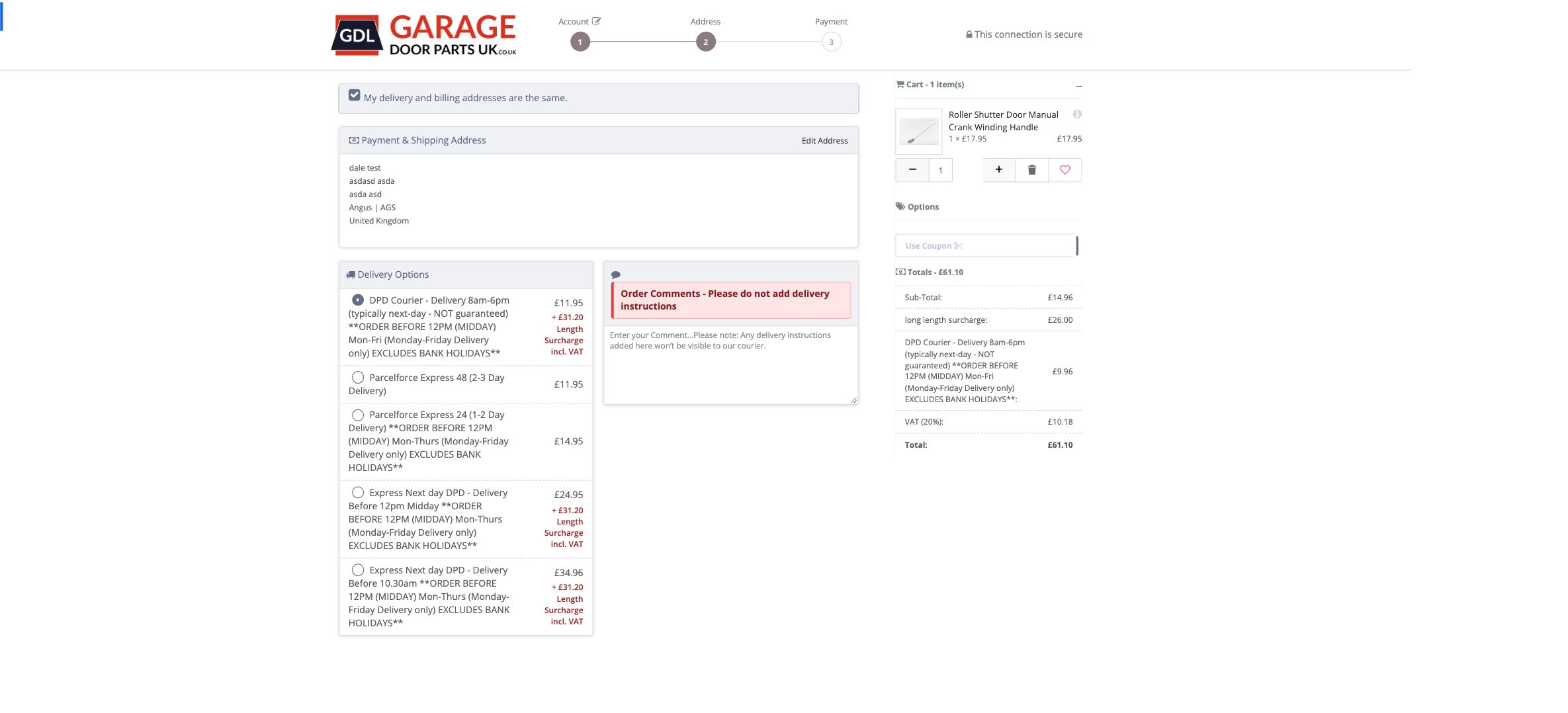
These are the example shop’s product, delivery and tax amounts. They are separate from the £20 total price of the Shipping Control extension.
EXAMPLE 02 · A NOTICE FOR THE SELECTED SERVICE
Explain delivery before the customer orders.
Show a helpful notice when the customer chooses Economy delivery, and remove it when they choose a service that is outside the notice’s selection.
Benefit: set expectations at the point of choice and reduce avoidable questions about delivery times.
Add the delivery note
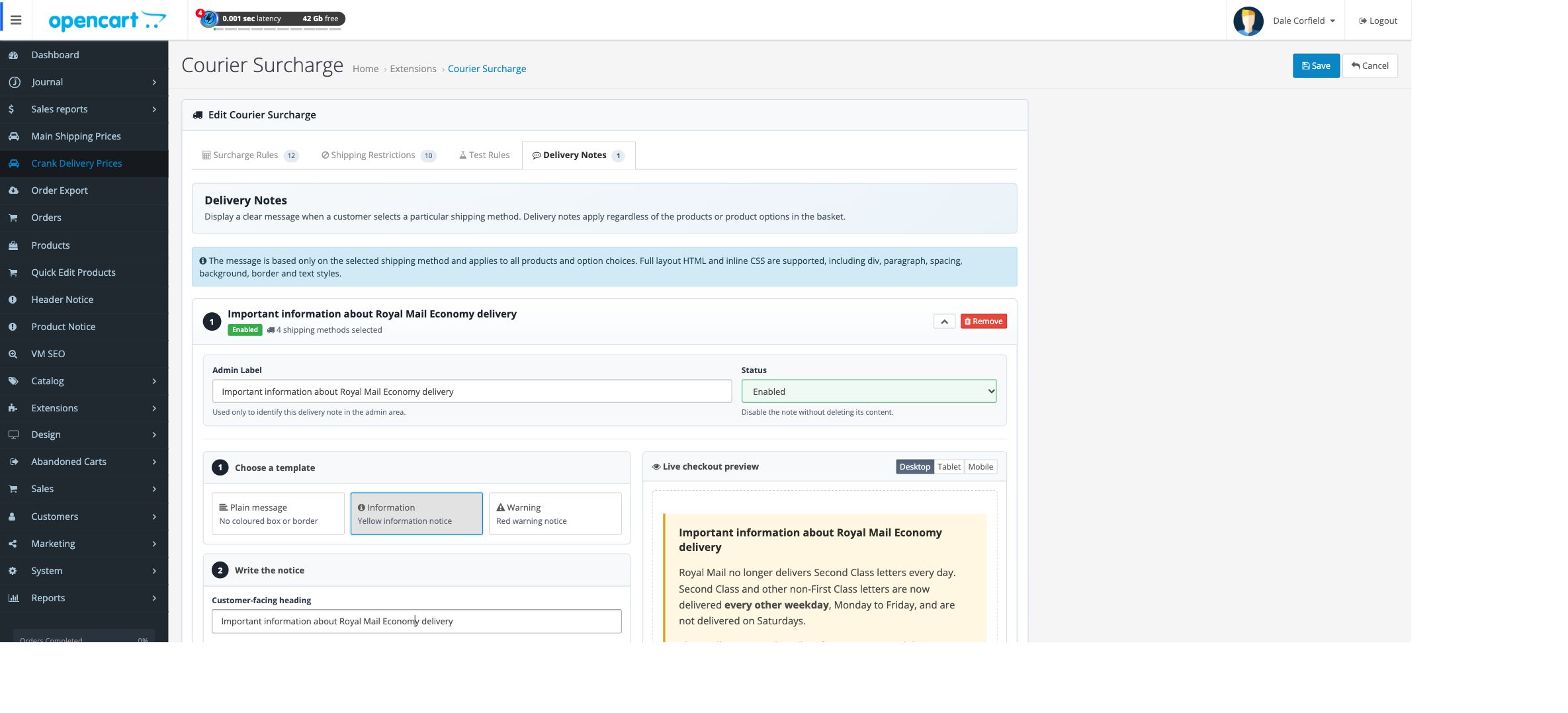
Open Courier Surcharge → Delivery Notes and click Add Delivery Note. Give it an Admin Label and set Status to Enabled.
Choose the appearance and write the message
Under Choose a template, select Information. Under Write the notice, enter the Customer-facing heading and the message. The Live checkout preview shows the result as you edit.
| Setting | What to enter or select | Why |
|---|---|---|
| Admin Label | A clear internal label, such as “Economy delivery information”. | Identifies the note for staff. |
| Status | Enabled | Allows the note to appear. |
| Choose a template | Information | Uses the yellow information-style notice shown in the screenshot. |
| Customer-facing heading | “Important information about Royal Mail Economy delivery” in this example. | Gives the shopper a clear description of the message. Use your own service name. |
| Message | Explain the actual delivery timeframe and any important service conditions. | Sets expectations before the customer orders. Keep the information current. |
| Shipping Methods | Select the Economy service that needs the notice. Leave Standard unticked for this example. | Shows the note only when a selected service matches. The actual shop also selects other relevant Economy services. |
Example wording you can adapt: “Please allow 2–5 working days for our Economy delivery service. If you need your order sooner, choose another available service.” Only use a timeframe and alternatives that are accurate for your own store; this is suggested copy, not a replacement for the shop policy in the screenshot.
Choose exactly when the message appears
In this note’s Shipping Methods selection, find and tick the Economy service. Leave Standard unticked. Use the preview’s Desktop, Tablet and Mobile buttons to check the message, then click Save.
You do not select products for a delivery note. It follows the selected shipping method for any basket. If more than one enabled note matches, the first matching note with content is displayed.
Check the notice at checkout
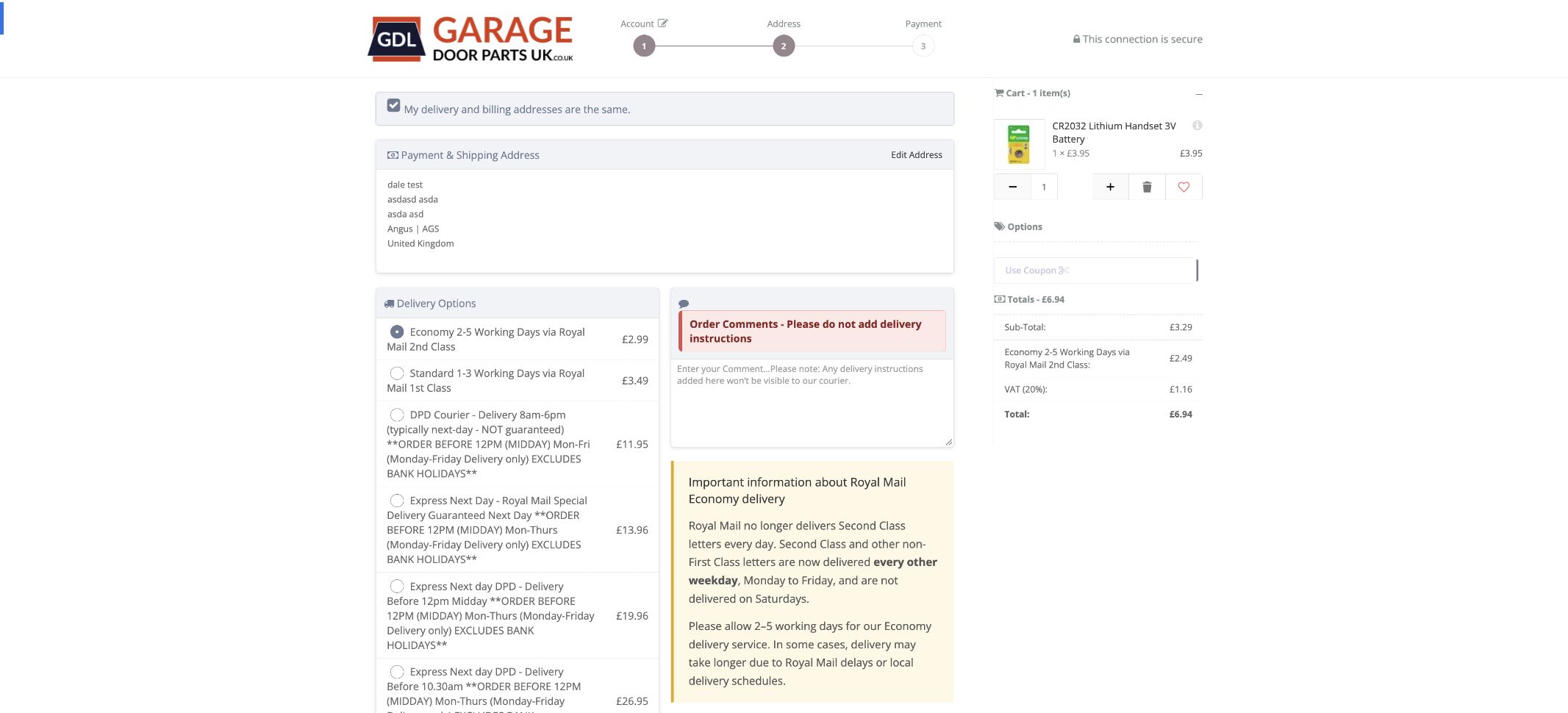
Add a product eligible for Economy delivery and enter a suitable delivery address. The illustrated test uses one small battery. Select Economy 2–5 Working Days: the yellow note appears below the order-comments area.
If Economy is not offered, check your shipping module’s address, weight and product rules. A delivery note does not create a missing shipping service.
Switch the service and check again
Select Standard, which was left outside the note’s selection. The Economy note should disappear; switch back to Economy and it should return. The Economy-to-Standard change was verified on the pictured checkout.
Finally, repeat the check on a phone and after a checkout refresh. Placement and refresh behaviour depend on your checkout integration, so the actual storefront check matters as well as the admin preview.
Read the delivery-notice setup details · Learn how to test your saved rules
Build rules around your shipping setup.
Product and option surcharges, delivery restrictions and customer notices in one OpenCart 3 extension.
Get Shipping Control · £20 total